

KSeF + Bitrix24 Integration
Thank you! Your submission has been received!
Oops! Something went wrong while submitting the form.


This integration allows you to:
The functionality for automatically populating and processing payment-related data (e.g., payment date fields in CRM) depends on the Bitrix24 subscription plan.
Basic and Standard plans
Professional plan and above
Important:
Automated population of payment-related fields requires proper configuration of Business Processes in Bitrix24 CRM.
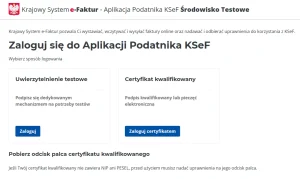
If you want to obtain a test token, open the official KSeF test portal: https://ap-test.ksef.mf.gov.pl/web/
Next, select one of the following authorization methods:
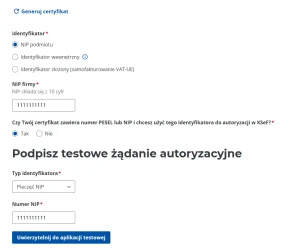
2.2 Obtaining a Token from an Active KSeF Account
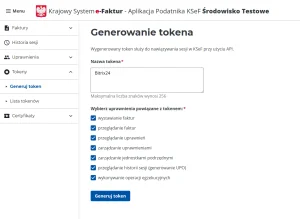
If you want to obtain a token from your active KSeF account, log in to your KSeF profile.
After logging in:
Important: save the generated token in a secure location. For security reasons, KSeF may not allow viewing the full token again later.
Important
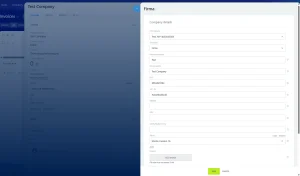
This is the most important configuration step. Without properly configured company information, invoices may be rejected by KSeF.
Tax rates must also be configured in Bitrix24.
To configure tax rates, navigate to:
CRM → Settings → CRM Settings → Taxes
Required company information:
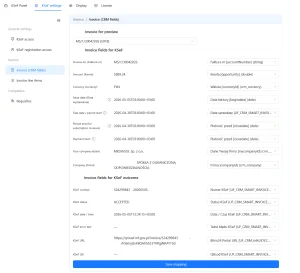
All fields must be assigned correctly for the application to function properly.
All fields required for the KSeF integration must be created in the Invoices section of Bitrix24.
Field type requirements:
| Purpose | Field Type |
| Text values | String |
| Date values | Date/Time |
| KSeF QR code | File |
These values are automatically written back to Bitrix24 after invoice submission.
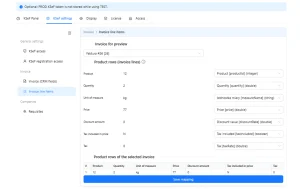
All fields must be assigned correctly for the application to function properly.
All tax rates displayed in the application are automatically loaded from the tax rates configured in Bitrix24:
CRM → Settings → CRM Settings → Taxes
When creating an invoice for a product with a 0% tax rate, the application will prompt the user to select the appropriate tax rate to ensure correct data transmission and processing.
The availability of tax rate selection also depends on the customer’s country and tax configuration.
For additional guidance and supporting information, please refer to the expandable help section.
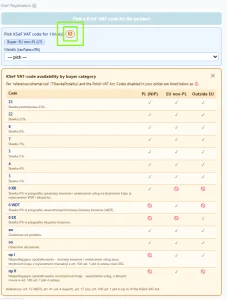
The customer’s country is determined using the “Buyer Country Code” field configured in the Company Details section.
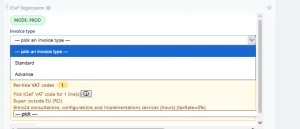
After enabling any additional invoice type besides Standard, it is important to fill in the additional fields in the “Invoice CRM Fields” section for the system to work correctly.
Before sending an invoice, a required field for selecting the invoice type will appear, as shown in the screenshot below.
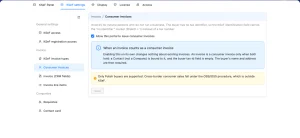
Issue Invoices Without a Tax Identification Number
The application allows you to issue invoices without a tax identification number (e.g., VAT ID or NIP). This makes it possible to create invoices for individual customers instead of companies.
To use this feature, make sure that the invoice is linked only to a Contact and not to a Company. The application will automatically retrieve the required customer information from the Contact, including:
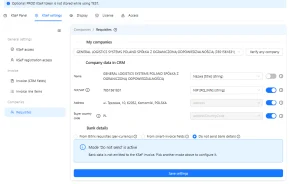
In this section, you can verify the information that the application retrieves for any company stored in your database using the “Verify Any Company” tool.
We strongly recommend using this feature before issuing invoices to ensure that all transmitted company information is correct.
The application also supports:
Your company’s bank account information can be configured in Section 1.
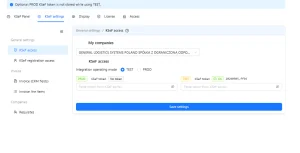
9.1 Select Operating Mode
Available modes:
We strongly recommend testing the integration in TEST mode before switching to PROD mode.
9.2 Enter the Token
To improve security and prevent unauthorized reuse of the token after it has been saved, copying the token from the application interface is disabled.
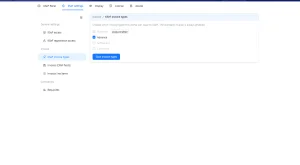
Available options:
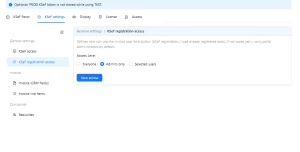
Recommended during setup and testing: Admins only
In this section, you can view and monitor invoices issued within a selected period.
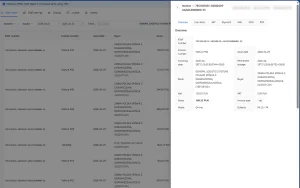
The panel allows you to:
TEST vs PROD
Important:
Invoices sent in TEST mode are transmitted only to the KSeF test environment and do not create legally valid accounting documents.
Common Reasons for Invoice Rejection
Invoices may be rejected due to:
We recommend verifying all configuration settings before issuing invoices in the production environment.
