

How to get started with Bitrix24 CRM: initial set-up
Thank you! Your submission has been received!
Oops! Something went wrong while submitting the form.


Nowadays, it is virtually impossible to imagine effective business process management without a CRM. This platform has become the central hub for many companies, combining CRM, internal communications, tasks and analytics. It frees teams from chaos, automates routine tasks and helps you monitor every step — from the first contact with a customer to a successful deal.
Key CRM features
• Collection of enquiries from all channels — messages from the website, email, instant messaging apps and social media are automatically fed into a single database.
• Centralised customer database — contacts, correspondence history, documents and invoices are stored in one place and are not lost when a manager leaves or is replaced.
• Automating routine tasks — bots and triggers set tasks, send emails, remind you of calls and move deals through the sales funnel.
• Analytics and reports — built-in tools show sales figures, conversion rates and staff performance.
In this article, we’ll walk you through, step by step, how to log into your CRM and set up the system before you start actively working with clients.
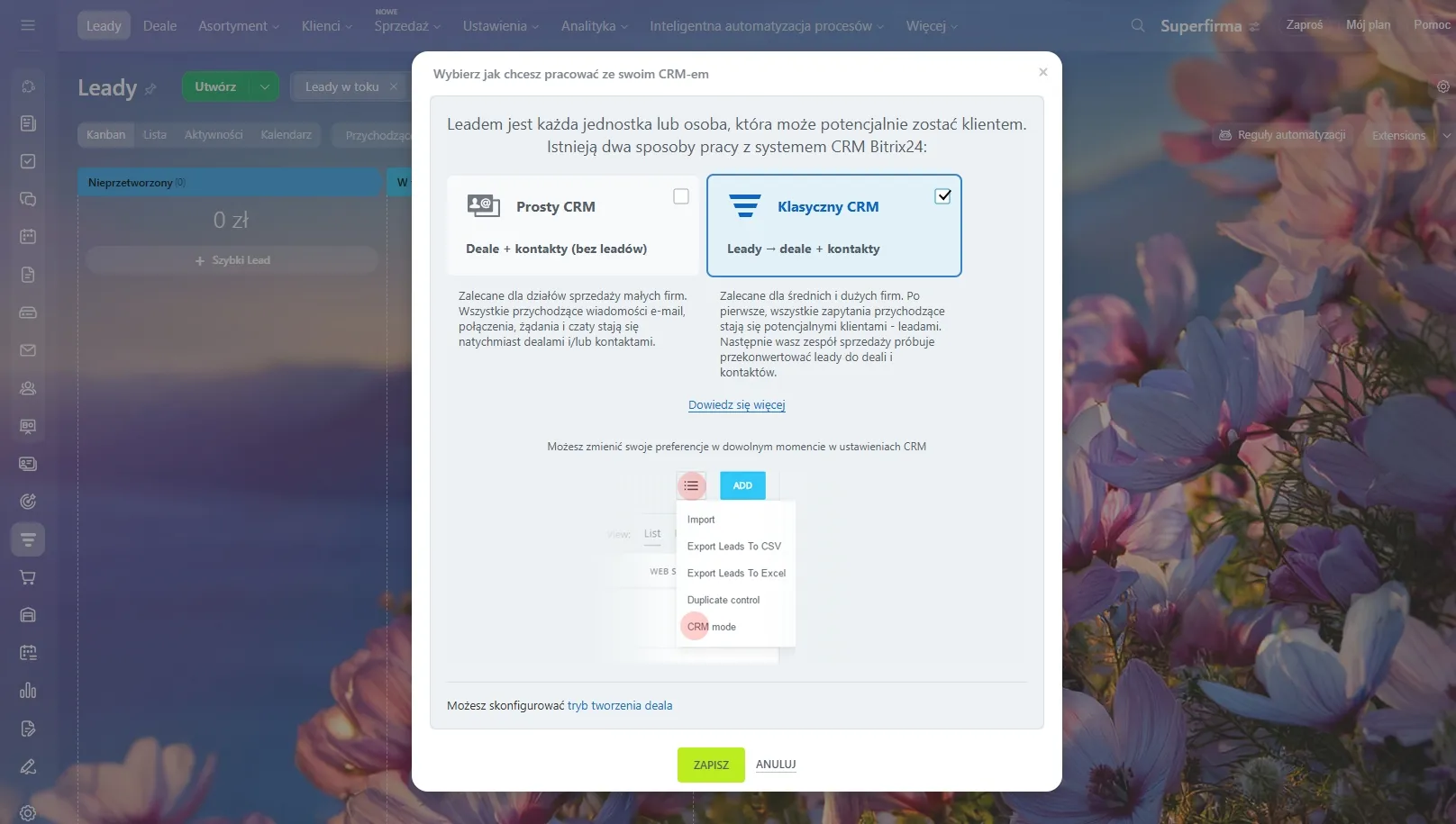
There are two CRM operating modes available: classic and simple.
Classic CRM with leads is a tool that helps organise the flow of new enquiries and ongoing deals so that managers don’t miss a thing.
How this works in practice for your company:
All new enquiries are routed to a separate area (‘inbox’). Managers first qualify them there, and only targeted leads are moved to ‘deal’ status.
Who needs this: businesses with a high volume of incoming enquiries. This protects your key sales staff from chaos and routine tasks, allowing them to focus on customers who are already ready to pay.
A simple CRM system (without leads) is a tool for quick and direct sales, where every enquiry immediately becomes a deal, bypassing the preliminary screening stage.
How this works in practice for your company:
There is no intermediate ‘lead’ stage here. As soon as a customer calls, sends an email or submits an enquiry, the system instantly creates a transaction, contact or company record.
The manager immediately sees the full picture in a single window: customer details, communication history, selected products, the total amount and the current stage of the purchase. You have complete control over the entire cycle — from the first click to payment.
Who needs this? Small businesses with a low or medium volume of enquiries, where speed is key. If you have a long sales cycle, high-value one-off orders, or can tell straight away that a customer is a target prospect, this format will save time and spare your staff from unnecessary clicks.
| Criterion | Traditional CRM (with leads) | Basic CRM (without leads) |
| Process logic | First “the lead”, then “the sale”. | “The sale” begins straight away. |
| A high volume of traffic | A high volume of traffic, a lot of spam or unsolicited calls. | It’s a small volume of traffic, but each one is valuable and unique. |
| The main advantage | The sales department is being relieved of non-targeted incoming messages. | Maximum efficiency, no unnecessary steps. |
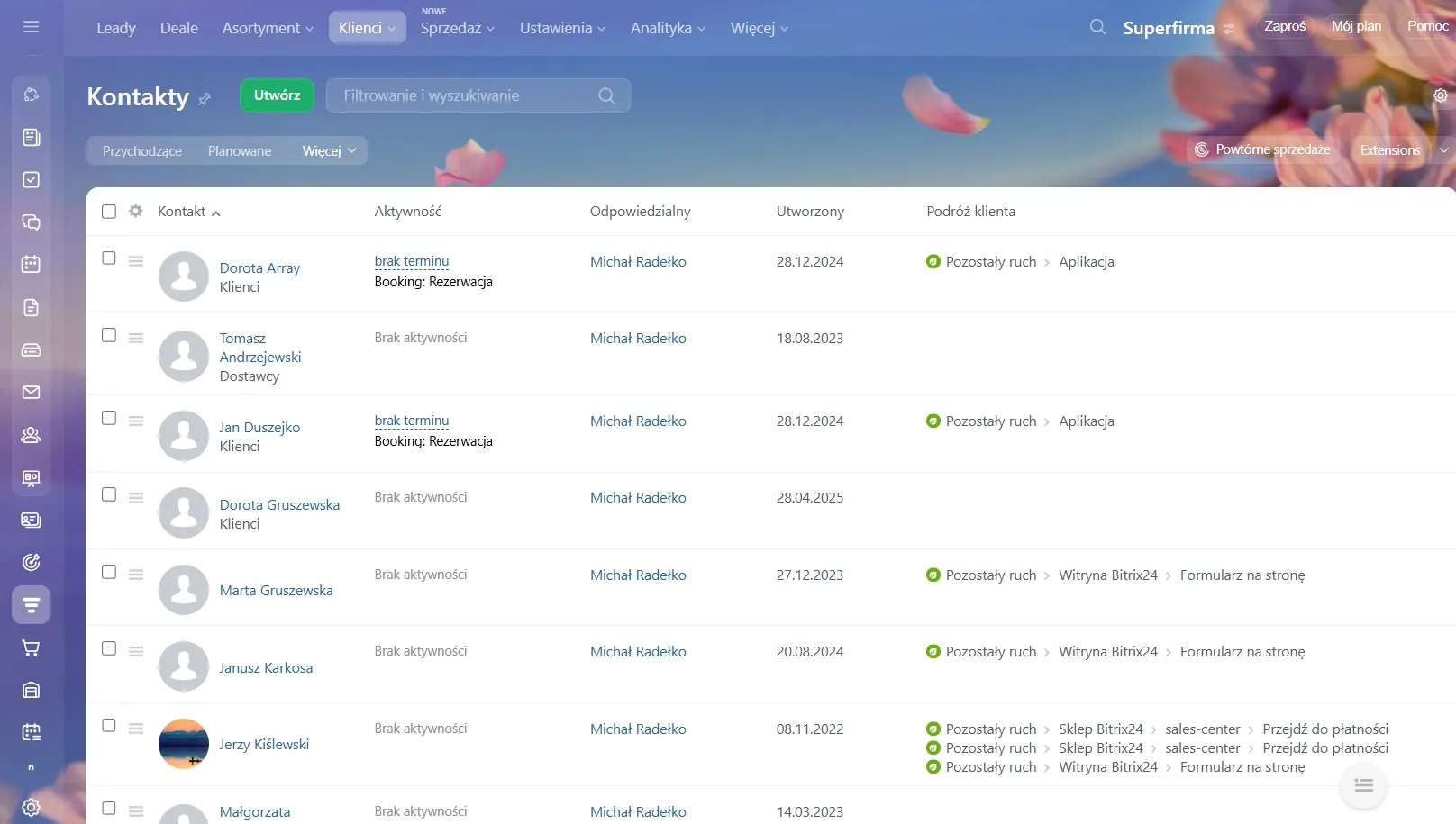
Feedback forms and corporate forms collect key information about customers: contact details, enquiry history and purchase history.
Customers can be added to the CRM using various methods:
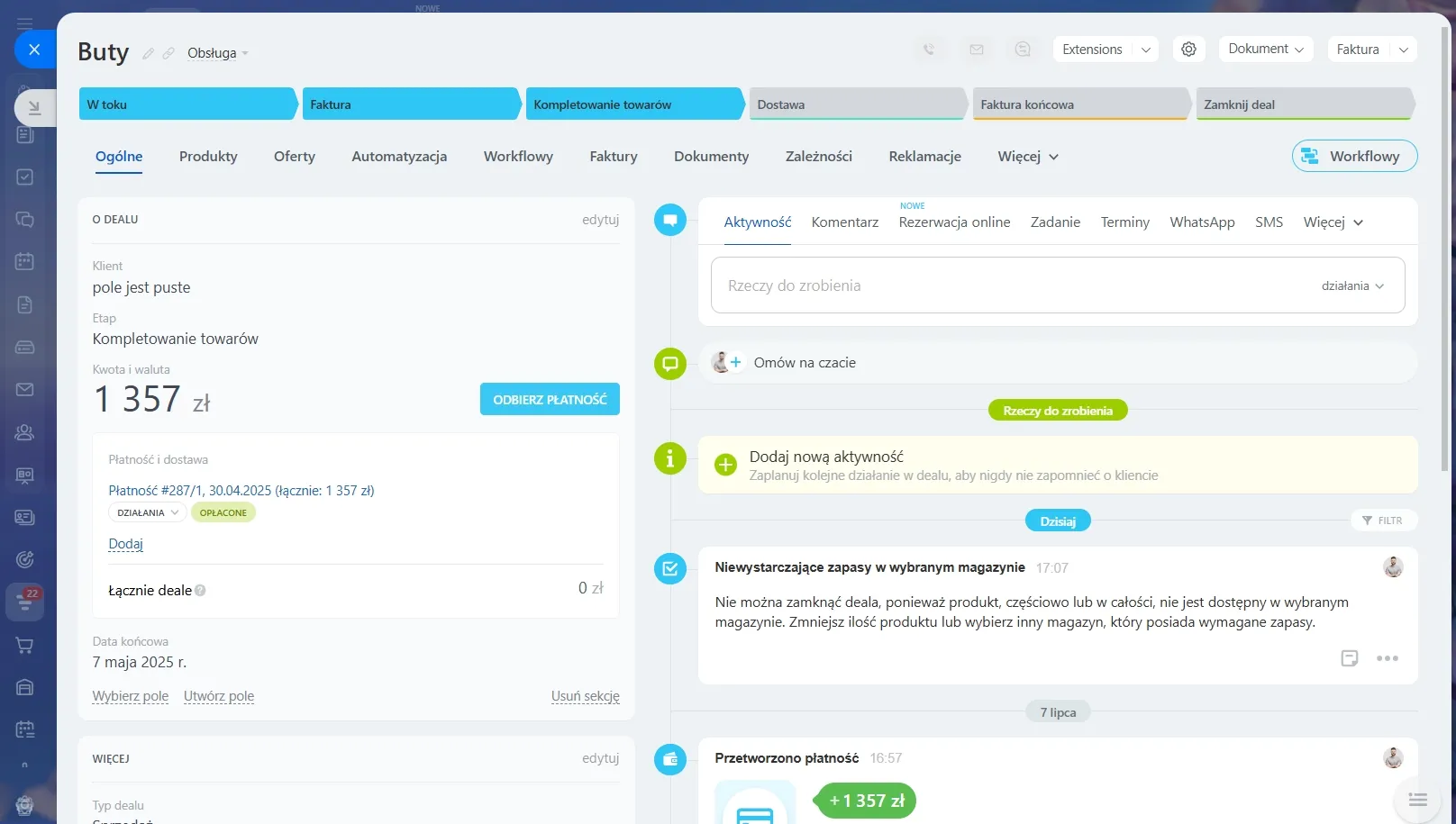
Customising CRM cards is a tool that adapts the system’s interface to your company’s specific business logic, eliminating confusion and employee errors. Properly configured forms allow managers to spend less time on routine tasks and ensure high accuracy in data collection, which has a direct impact on conversion rates and profit.
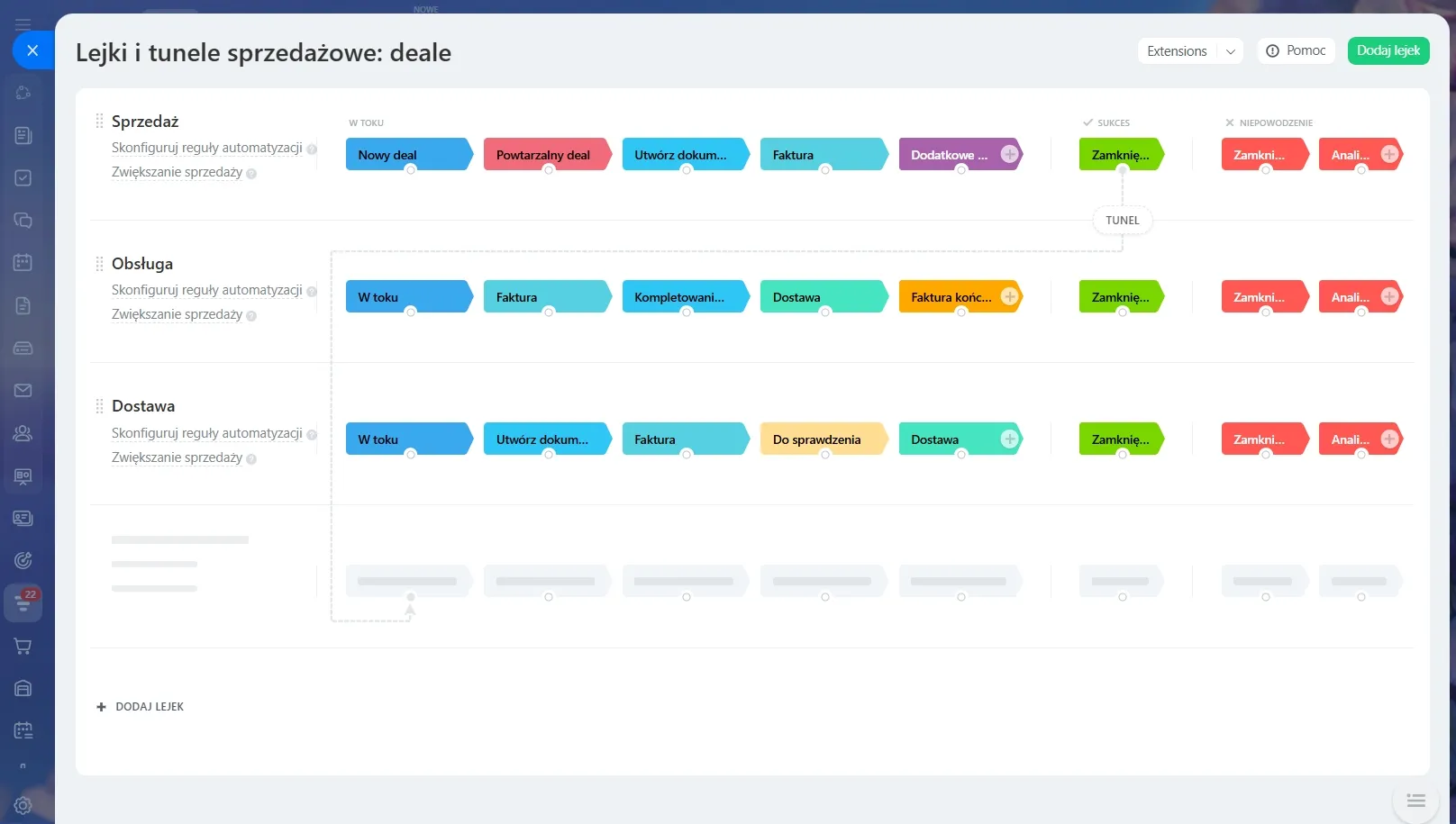
A sales funnel is a step-by-step process through which a manager guides a customer from the initial contact to successful payment. Each stage of the funnel represents a specific action (for example: agreeing terms, dispatching goods), enabling the business owner to see the actual status of each transaction.
For large or diverse businesses, CRM enables the creation of several parallel funnels to effectively separate:
Each funnel is customized individually: you can set your own unique stages, customize the appearance of the cards, and strictly define access rights so that employees see only the deals for which they are responsible.
In the CRM system, you can maintain a comprehensive catalog of products and services by adding names, descriptions, prices, and photos. Once the catalog is populated, these items can be quickly added to invoices, quotes, and your online store’s website.
There are two ways to populate the catalog:
Manually. This is suitable for companies with a small product range that rarely changes.
Import from a file. This feature allows you to upload a list of products to Bitrix24 in bulk. It’s the perfect solution for companies with large warehouses.
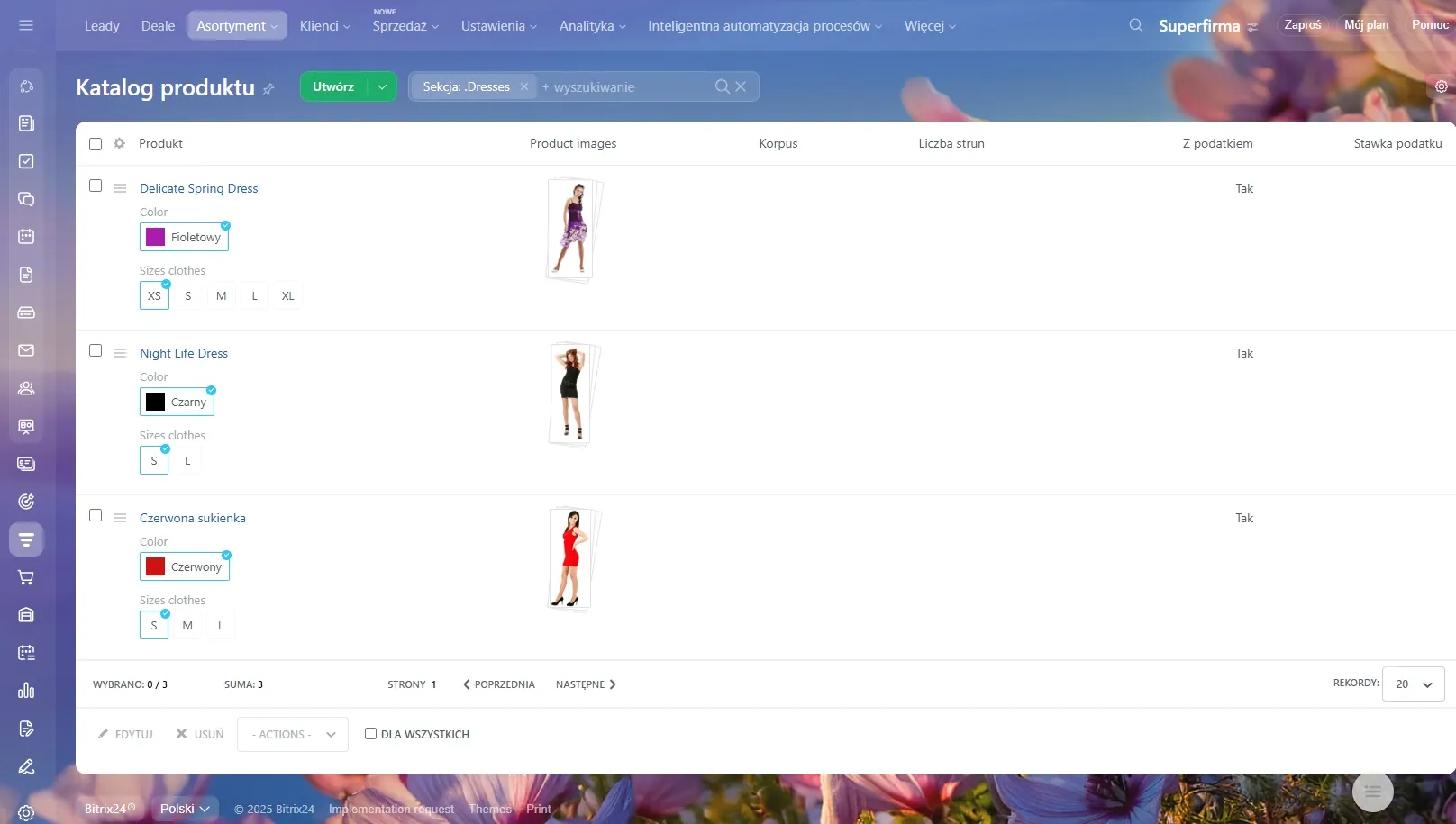
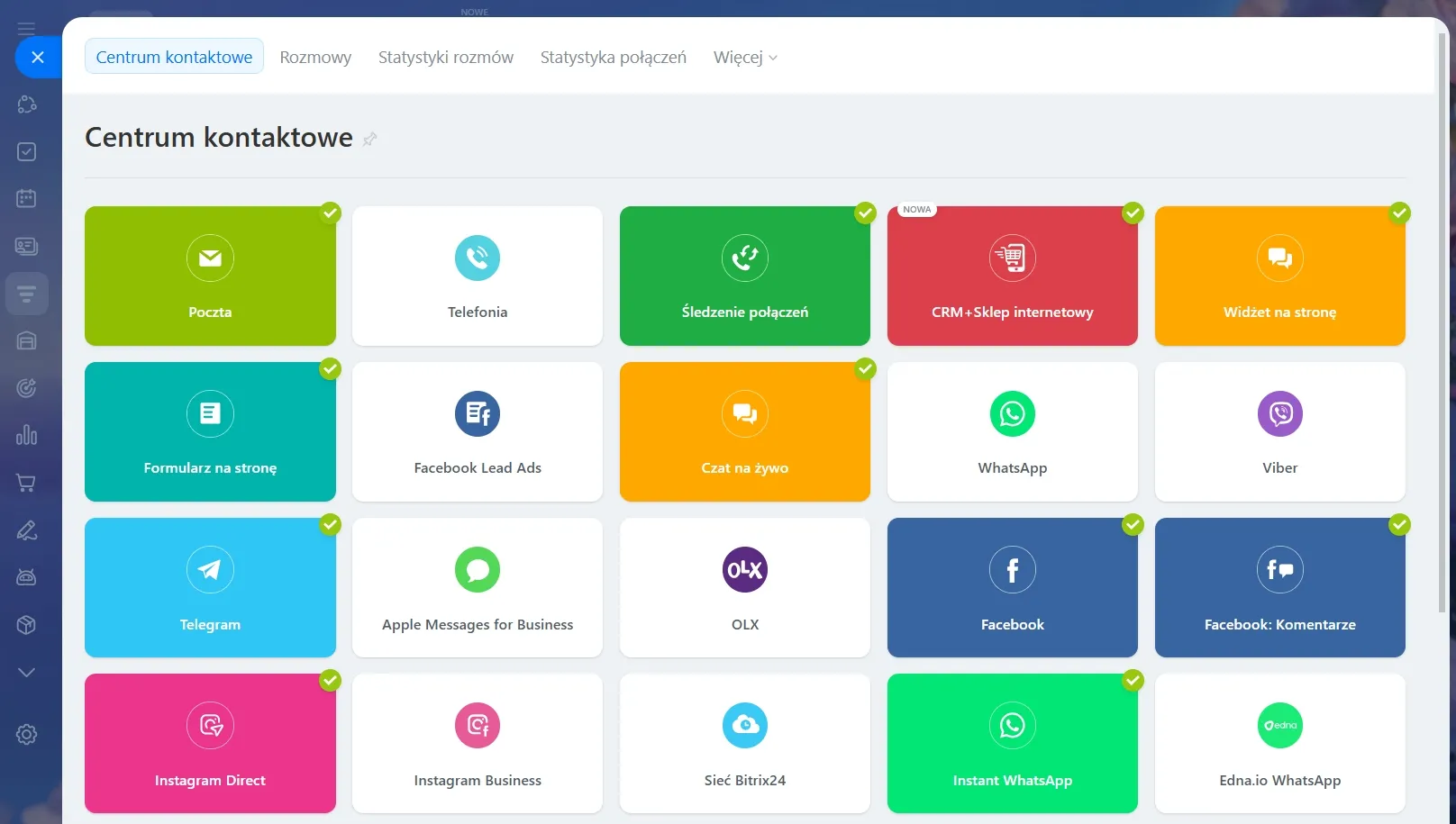
Omnichannel capabilities in CRM help you automatically collect all customer inquiries from any source into a single system, which prevents requests from being lost and preserves a complete communication history.
Connect key communication channels to your CRM system to automate sales:
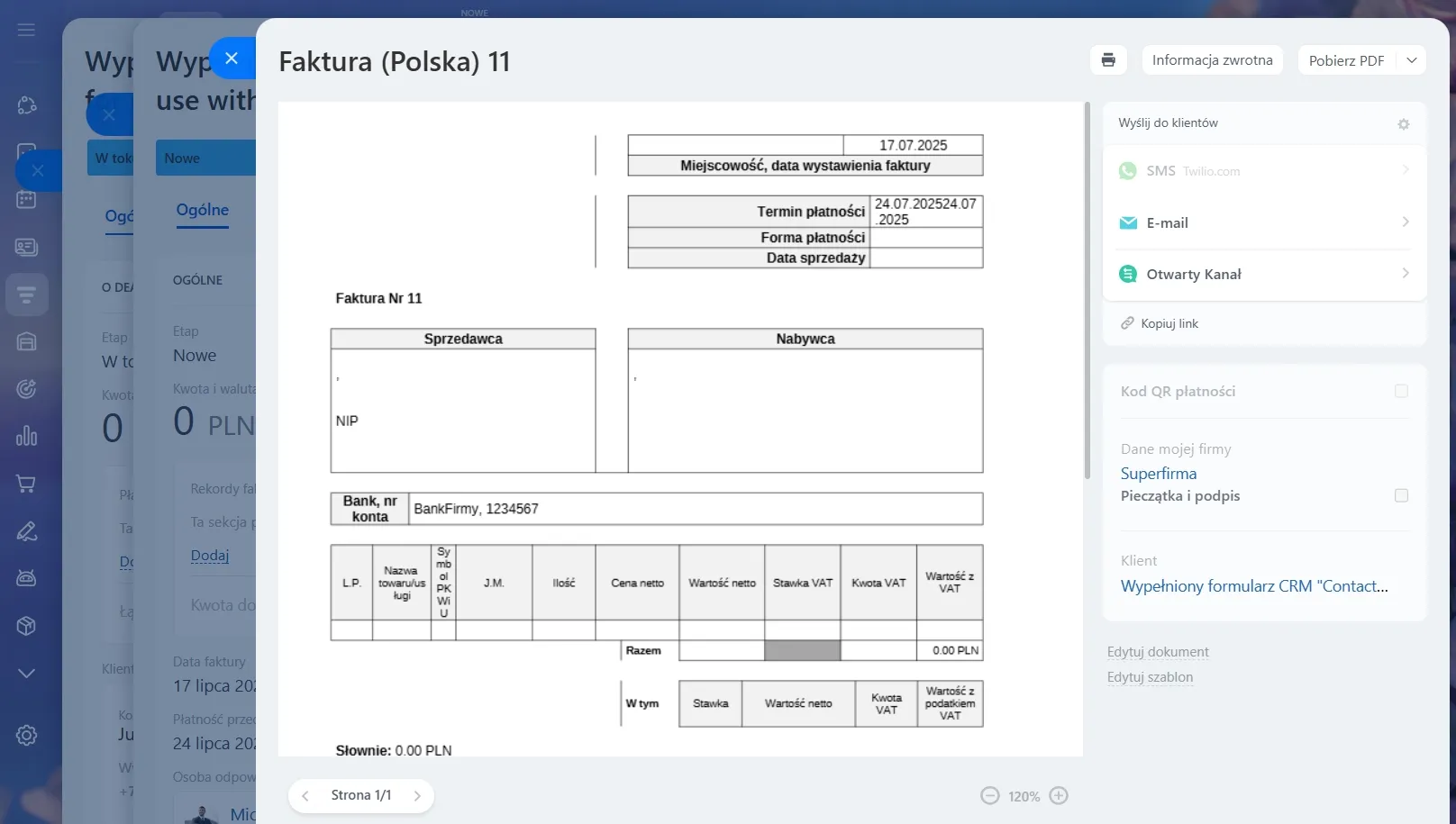
Once a deal is closed, you can use it to prepare:
All data—products, prices, amounts, and your company’s and customers’ contact information—is automatically imported from the CRM. This saves employees time and completely eliminates the risk of human error.
You can create pre-made documents (contracts, invoices, quotes) based on templates directly from the deal card and send them to clients instantly.
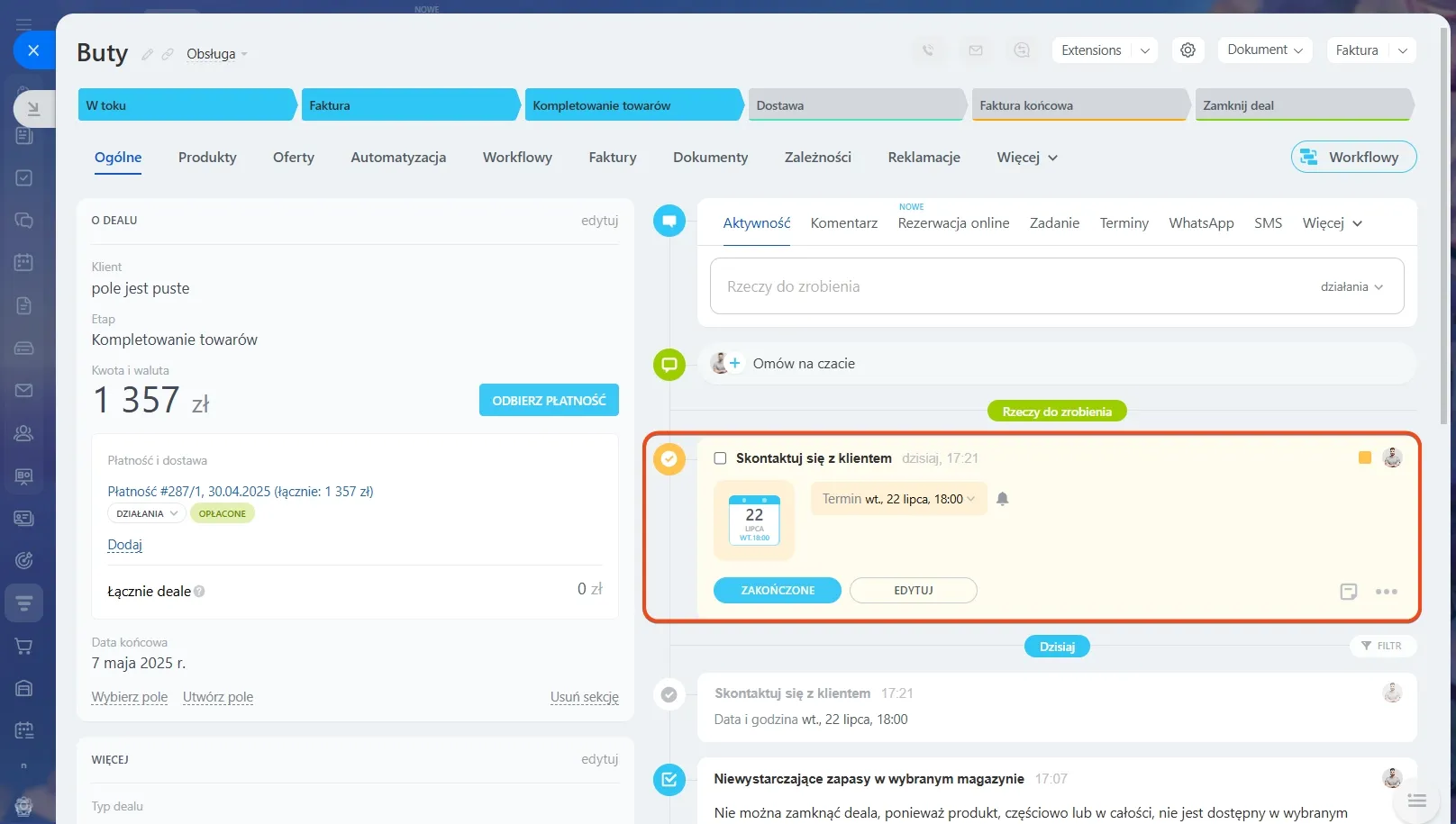
You can schedule calls, meetings, tasks, and other actions directly from the CRM form. All information is saved on a timeline, and smart reminders alert you to important events. This helps you stay on top of things and close deals faster.
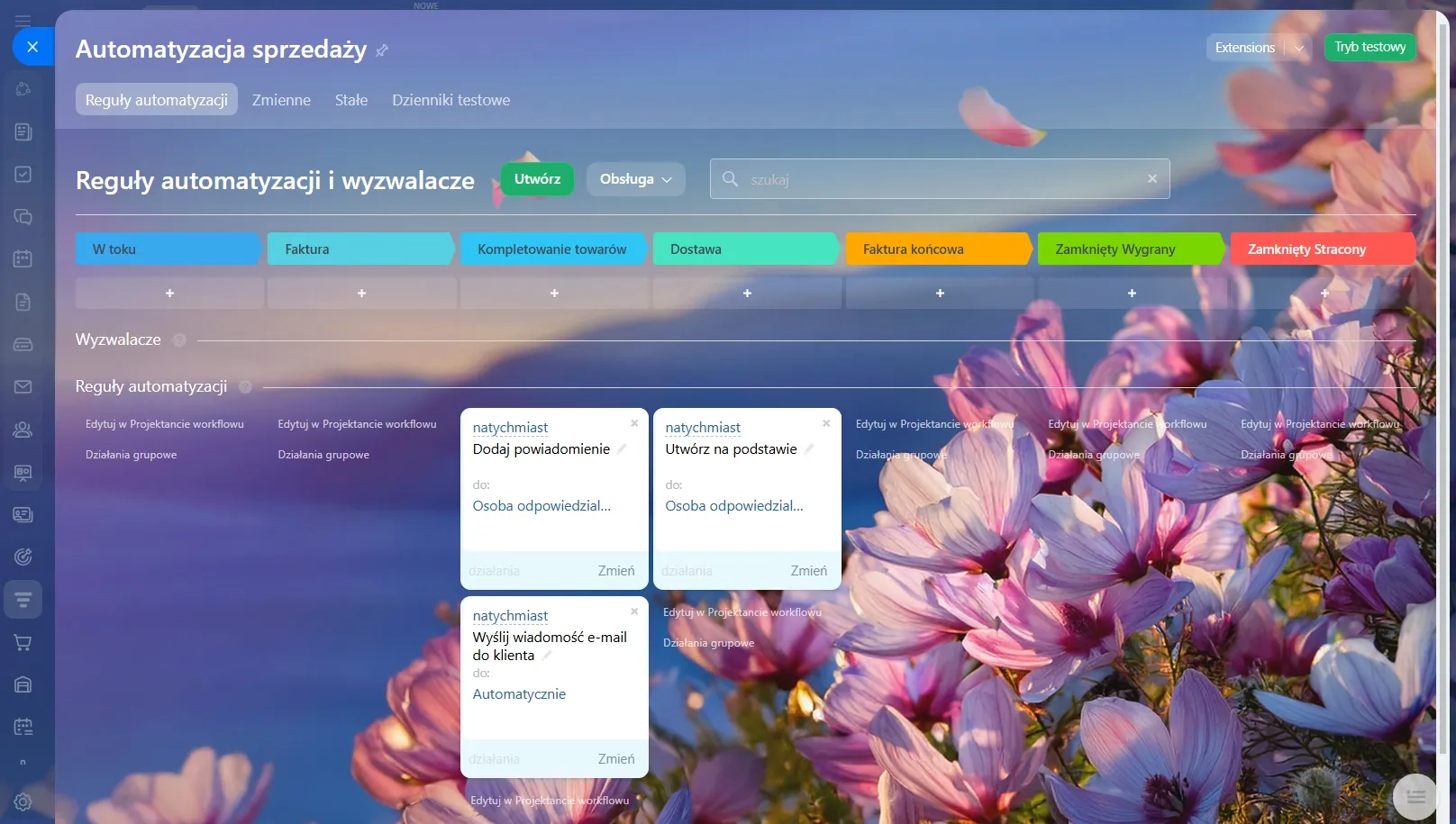
CRM automation frees the sales department from routine tasks, speeds up customer interactions, and eliminates human error. The system automatically moves deals through the stages and performs routine tasks using two tools: triggers and bots (automation rules).
Here’s how this logic works:
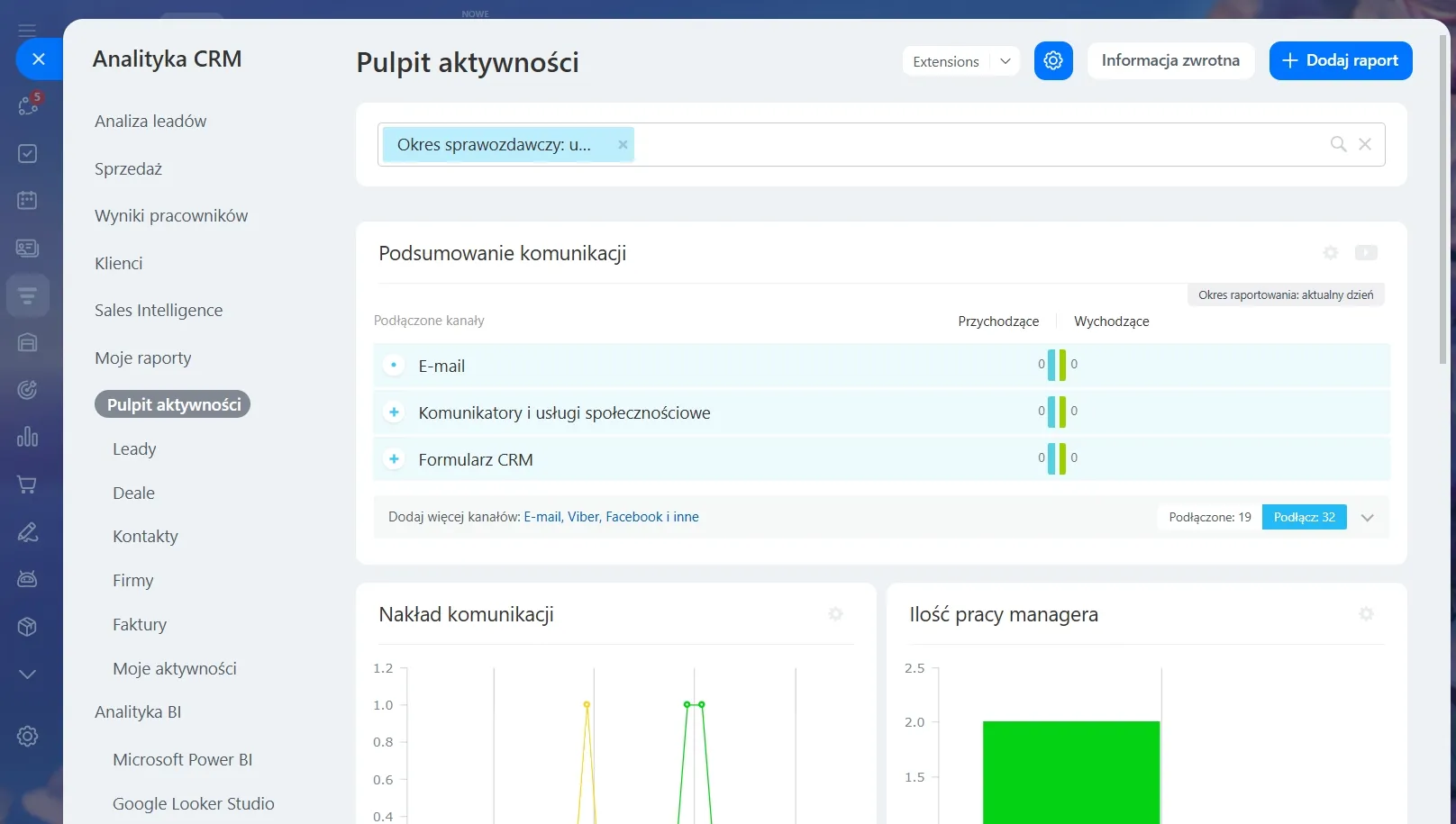
Use built-in reports and integrate BI Builder to analyze sales, employee performance, return on advertising investment, and other metrics. This will help you make informed decisions.
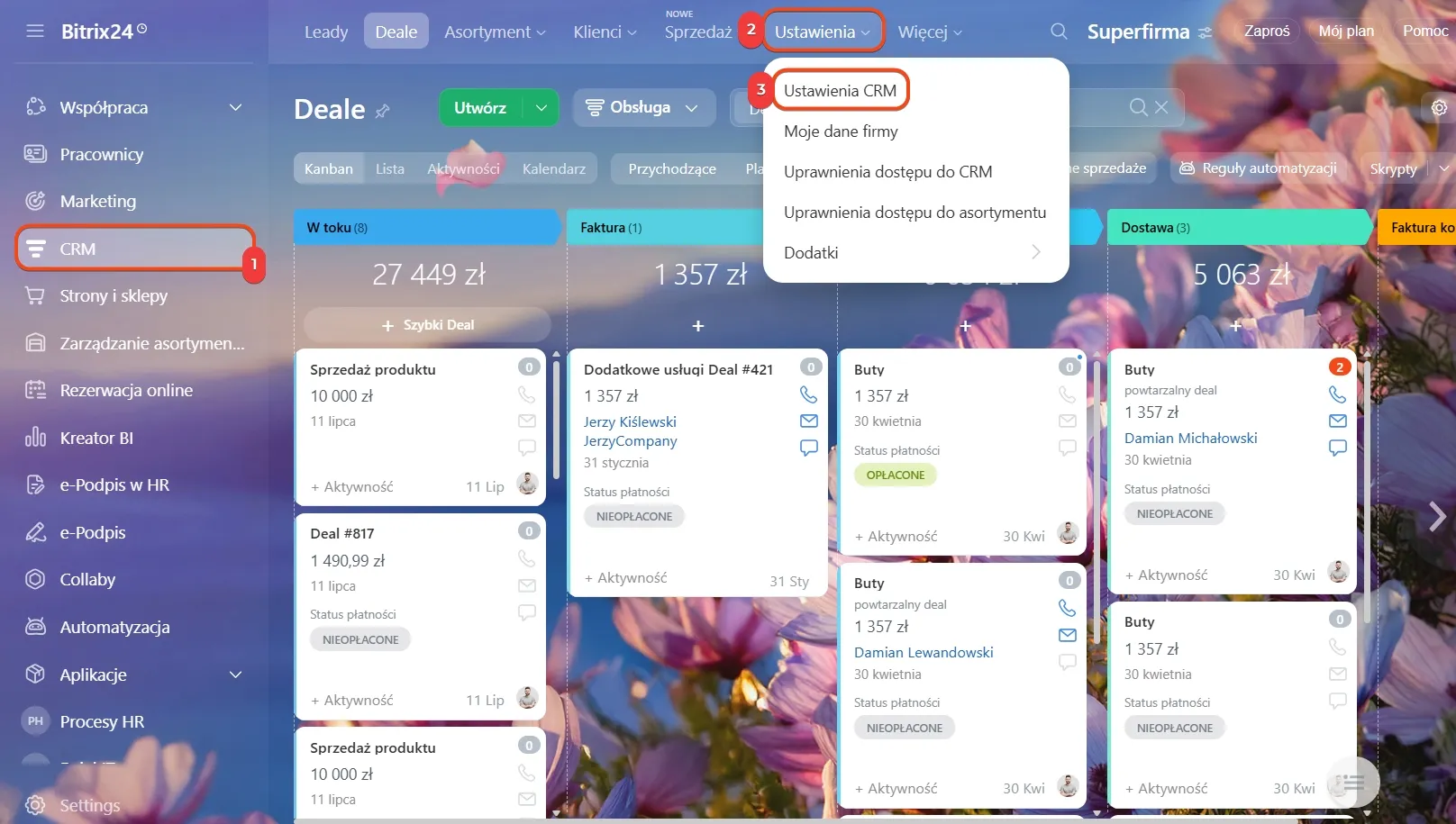
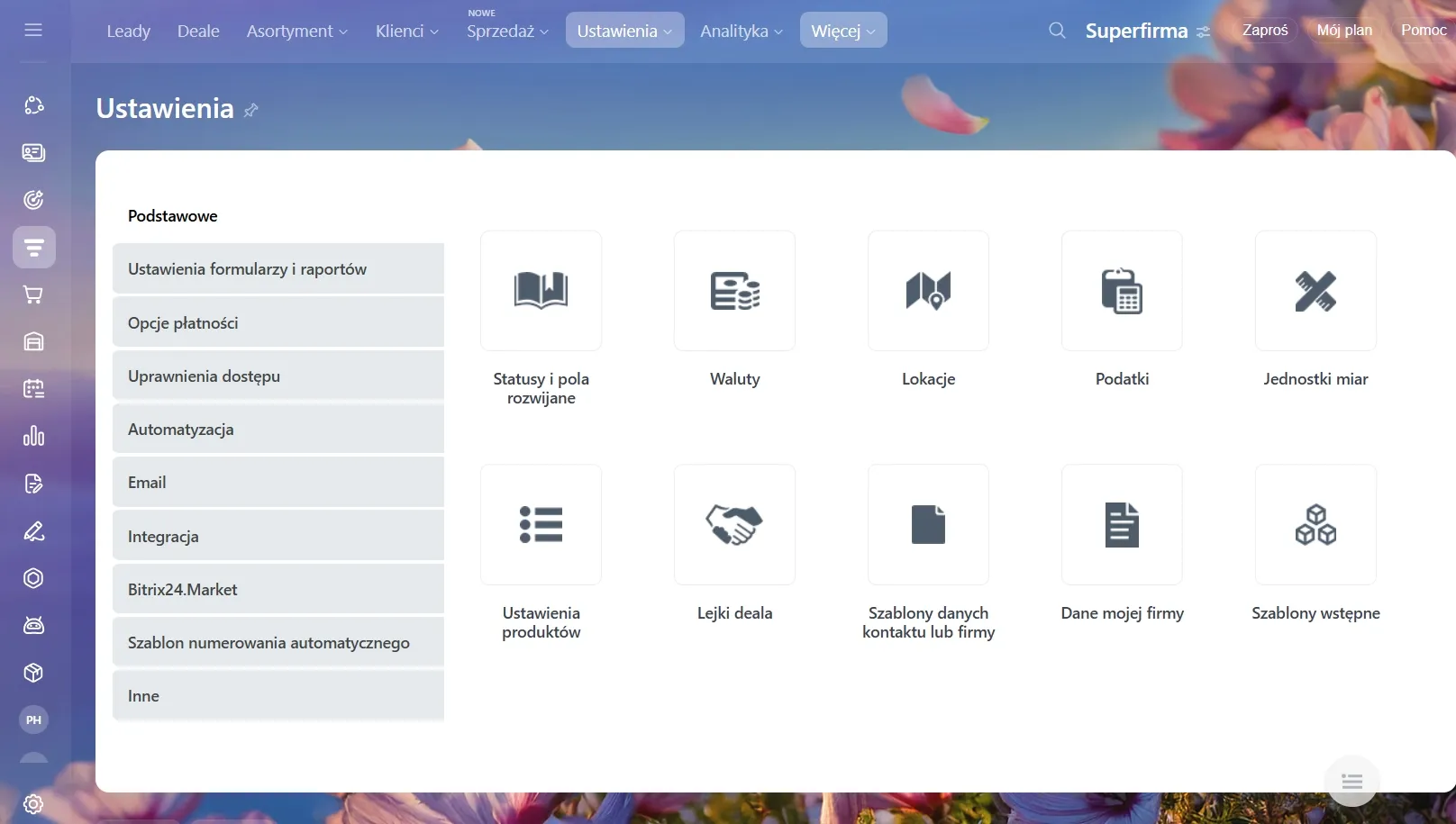
Go to CRM > Settings > CRM Settings.
Use pre-built templates to get started with CRM, complete with pre-configured settings.
Collaborate with clients from anywhere, without needing a computer. The Bitrix24 mobile app, available for iOS and Android, lets you create deals, communicate with clients, track tasks, and much more.
