

How to use module Calculator in Deals
Thank you! Your submission has been received!
Oops! Something went wrong while submitting the form.


Watch the video, how calculator in Deals works: Calculate Margin Profit in Bitrix24 Deals – Bitrix24 Case Study
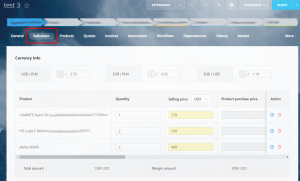
2. Set the exchange rate.
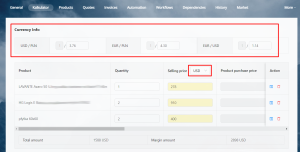
In the module, for each Deal, you can assign your own exchange rate PLN / USD / EUR, according to which you can recalculate the price parameter. You can also use the “Get current rate” button to fetch the latest rates from the National Bank.
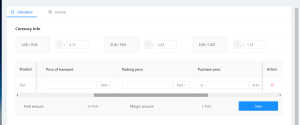
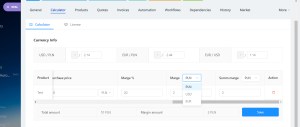
The calculation formula in the calculator is as follows:
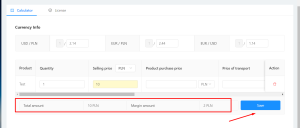
Save changes if you need to. Additionally, you can enable “VAT Calculation” to see the net/gross difference directly in the table. Save changes if you need to. After saving, you can synchronize the final Total Price back to the standard “Amount” field of the Deal.
Learn more about Calculator on our website.
